Adding Team Members
You can invite team members to your workspace so they can help create, schedule, and manage content. Each plan includes a set number of team member slots.
How to Invite
- Your workspace owner or admin invites you via email
- You receive an invitation link
- Click the link, create an account (or log in), and you're in the workspace
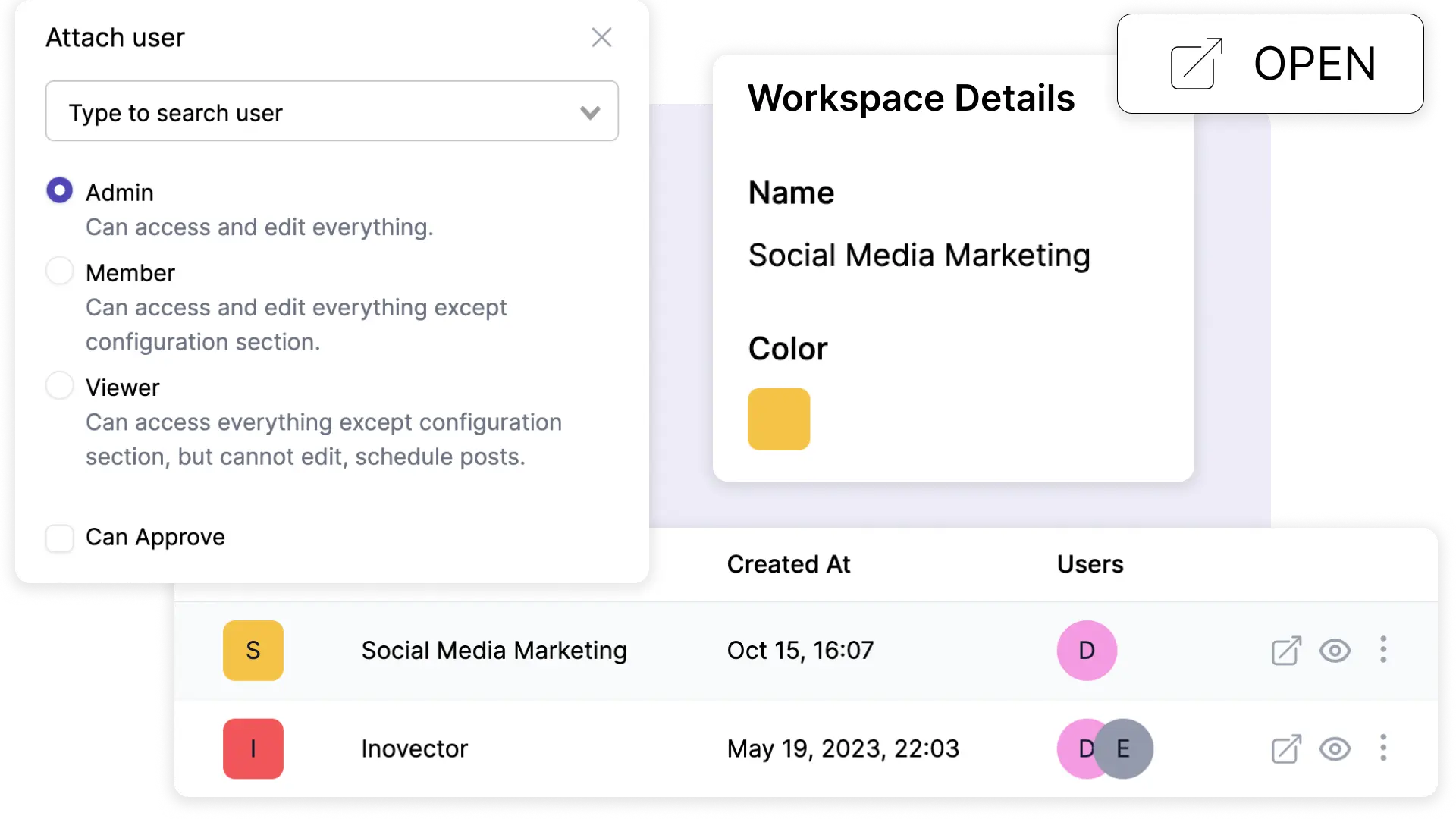
Roles
- Admin — Full access: manage accounts, settings, team members, and approve posts
- Editor — Can create, schedule, and manage posts and media. Cannot change workspace settings.
Post Approval
Team members can be configured to require approval before their posts go live. When a member without approval permission schedules a post, it goes to Needs Approval status. An admin or approved member then reviews and approves it.
This is great for maintaining brand consistency when multiple people are creating content.
Approval from your Hub
If you manage several workspaces, you can set who can approve posts from your Hub as well as from each workspace’s own settings:
- Adding or inviting someone: tick Can approve next to the role before you click Add or Invite. Invited people get it as soon as they accept.
- Existing members: open Team on a workspace card, or pick a person on the Hub’s Team page, and tick or untick Can approve for each workspace.
The workspace owner can always approve, so their box can’t be unticked.
Plan Limits
| Plan | Team Members |
|---|---|
| Creator | 1 (solo) |
| Growth | 2 |
| Scale | 5 |
| Enterprise | Unlimited |